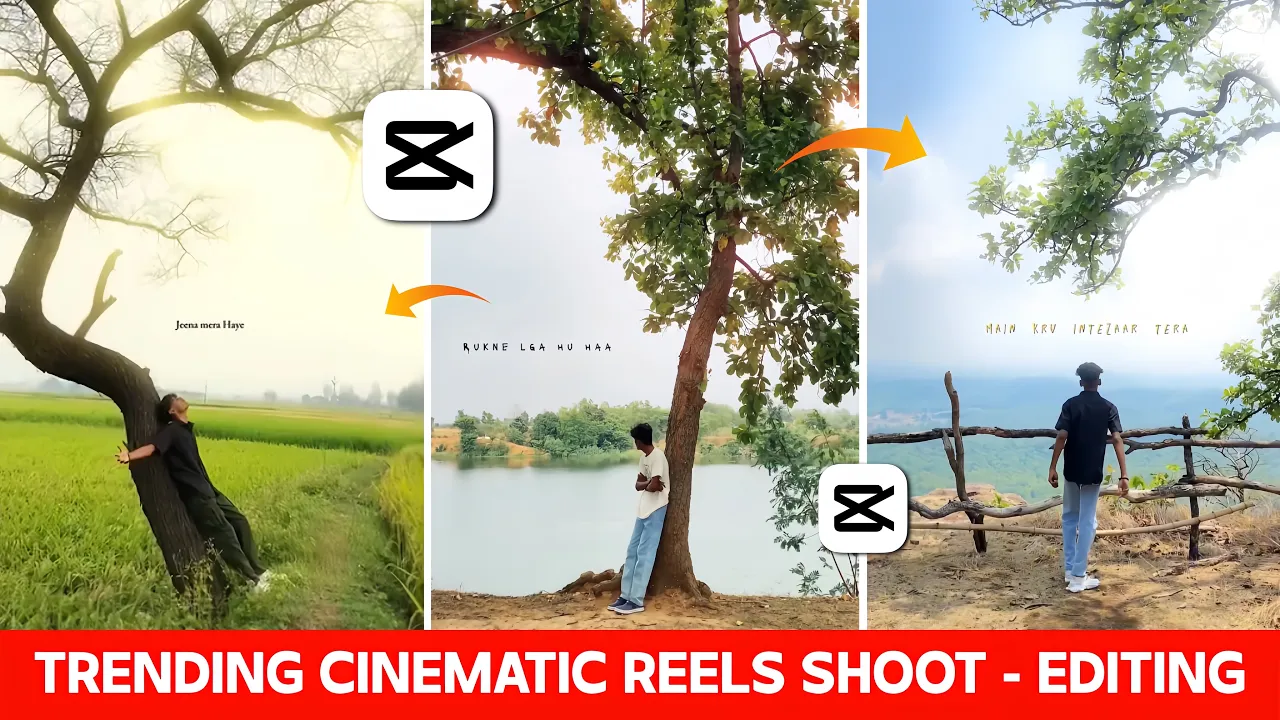
How to Create Stunning Cinematic Videos in CapCut – Step-by-Step Tutorial
Are you struggling to make high-quality cinematic videos for Instagram Reels, YouTube Shorts, or TikTok? Don’t worry — in this detailed guide, I’ll walk you through the entire process from shooting to editing, so you can create smooth, trending cinematic content that grabs attention. We’ll use the CapCut app, which is completely free and available for both Android and iOS.
1. Shooting the Cinematic Footage
Before we start editing, it’s important to shoot the right type of footage. Follow these tips:
- Choose a good location and try different backgrounds to make your shots interesting.
- Record multiple short clips instead of one long video.
- Move the camera slowly and steadily to avoid shaky shots.
- Experiment with different angles — low shots, side views, and close-ups work well in cinematic videos.
The shooting process is simple. Once you try it a couple of times, you’ll get the hang of it.
2. Importing Footage into CapCut
Now, open the CapCut app and start a new project. Select all the clips you recorded and add them to the timeline.
Tip: If a clip doesn’t look right, rearrange the sequence by dragging it to the correct position.
3. Adding Music
Music plays a huge role in creating cinematic vibes. Here’s how to add it:
- Mute the original audio of your clips to remove background noise.
- Tap “Add Audio” and import your chosen soundtrack.
- Listen to the music and mark the beats so you can sync video transitions with them.
To find royalty-free cinematic music, check Pixabay Music or Uppbeat.
4. Trimming and Splitting Clips
Go through each clip and remove any unwanted parts by using the split and delete functions. Keep your clips short and focused to match the beat of the music.
5. Adding Slow Motion
Slow motion is the heart of cinematic videos. Here’s how to apply it:
- Select a clip and tap on “Speed” → “Curve” → “Custom”.
- Leave the first two points as they are, then drag the next points down to slow the clip at the right moment.
- Enable “Better Quality” for smoother slow motion.
Apply slow motion to key moments that match the music beats.
6. Syncing with Music Beats
After adding slow motion, your clips might get longer. Make sure to cut them again at the beat points you marked earlier to keep everything in sync.
7. Adding Transitions and Animations
Transitions make your video flow smoothly from one scene to another.
- Use Black Fade for a clean cinematic look.
- Apply it selectively — too much can make your video feel repetitive.
- For more energy, use in/out animations like Cross Zoom or Swing, especially at beats with high impact.
You can explore CapCut’s transition library to find the best fit for your style.
8. Color Grading for Cinematic Look
Color grading enhances the mood of your video. In CapCut:
- Go to Adjustment and increase Sharpness slightly (around 30). Avoid over-sharpening.
- Use the HSL tool to adjust specific colors:
- Green → Boost for background scenery.
- Skin tones → Lighten slightly for a clean look.
- Yellow → Increase for warmth.
For inspiration, you can study cinematic color grading techniques from Color Grading Central.
9. Adding the Glow Effect
Many beginners use the built-in Colorless Flash effect for glow, but it often looks unprofessional. Instead:
- Go to the Filters section.
- Apply the Flash CCD filter for a soft, smooth glow.
- Adjust its intensity to your preference.
10. Final Touch with Filters
To complete the cinematic look, add a color filter over the entire video. The Green-Orange filter is a popular choice as it gives a warm and professional feel.
Final Output
Once you’re happy with your edits, export the video in high quality (1080p or higher). Your cinematic video is now ready to share on Instagram, YouTube, or TikTok.
Pro Tips for Better Cinematic Videos
- Plan your shots before filming to save editing time.
- Match your editing style with the mood of the music.
- Use natural light for more visually appealing results.
- Experiment with different transition and color grading styles to develop your unique look.
Creating cinematic videos may seem challenging at first, but once you understand the process, it becomes simple and enjoyable. Whether you’re making content for social media or personal projects, mastering these techniques will make your videos stand out.
If you found this tutorial helpful, share it with your friends and check out more resources on cinematic editing to keep improving your skills.